
Tutorial · 13 steps
How to use Kaggle's free TPU v5e-8: a 128 GB AI machine, step by step
Every click from creating an account to confirming the TPU works, each with a screenshot, then two ready-made ways to run Qwen 27B or Gemma 26B on it. Plus tips to make your quota last, and the Kaggle rules that can get an account banned.

Quick answer
Yes. Kaggle's free notebooks include a TPU v5e-8 accelerator: 8 TPU chips with 16 GB of memory each, 128 GB in total. Kaggle's docs say you can use TPUs for up to 20 hours a week and up to 9 hours in a single session. You need a phone-verified account, but no credit card.
- 128 GB 8 chips × 16 GB
- 20 h Per week, max
- 9 h Per session, max
- ₹0 Cost
What you get
| Accelerator | TPU v5e-8: 8 TPU chips, each with 16 GB of HBM memory [2] |
|---|---|
| Total memory | 8 × 16 GB = 128 GB. In one public run, each chip had 15.75 GiB usable, 125.98 GiB in total [6] |
| Quota | Up to 20 hours of TPU per week [1] |
| Session | Up to 9 hours in a single session [1] |
| Where | Notebook menu: Settings > Accelerator > TPU v5e-8
[3]
|
| GPU option | GPU T4 ×2 is also available. The GPU P100 was retired on 15 Sep 2026 [4] |
Before you start
- A Kaggle account. You can register with Google or with an email address.
- A phone number that can receive a text message, to verify the account. Without it, notebooks get no TPU and no internet.
- One account per person. Kaggle may ban duplicate accounts immediately.
- A browser and about 10 minutes. Everything runs on Kaggle; nothing is installed on your computer.
Part 1
Set up your Kaggle account
-
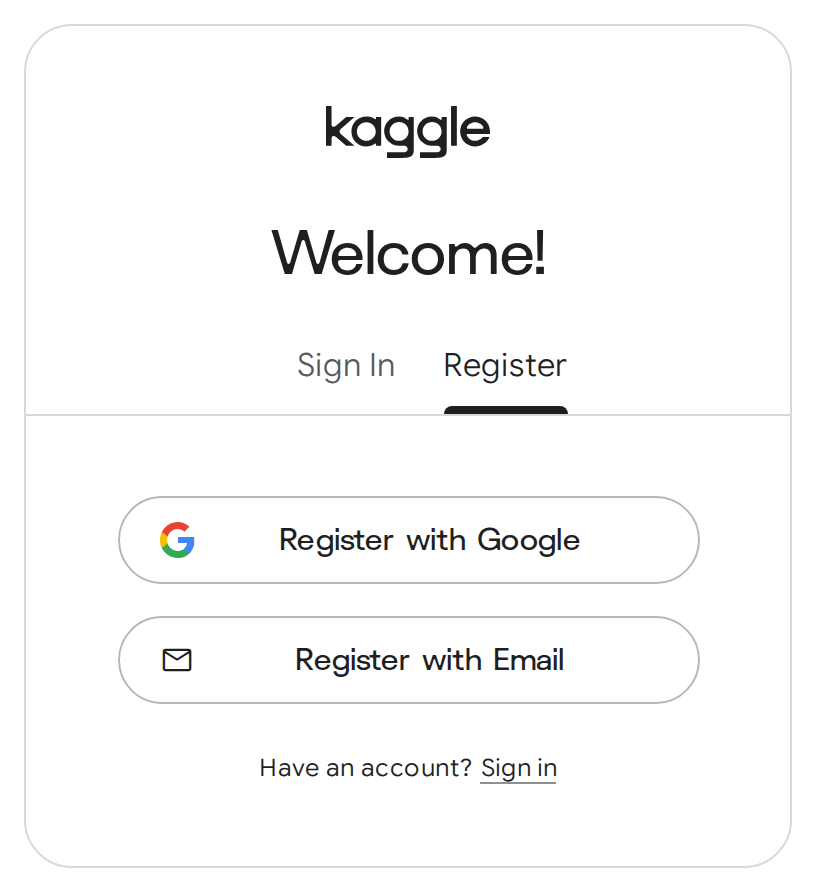
Step 1: Create a free Kaggle account
kaggle.com then
Choose Register with Google or Register with Email, whichever is easier. No card is needed.
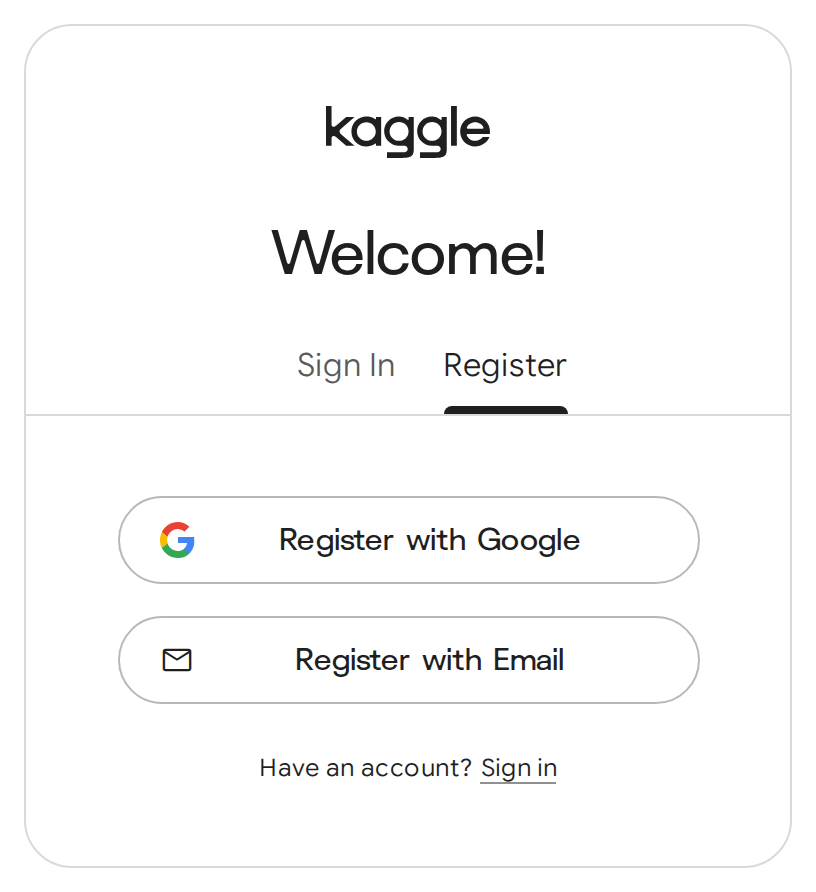
Step 1 kaggle.com → Register → Google or email -
Step 2: Verify your phone number
Profile picture then Settings then Phone verification
Enter your number, then the code Kaggle texts you. When it's done, the section says Verified. Without this, notebooks get no TPU, no GPU and no internet.

Step 2 Settings → Phone verification → Verified

Part 2
Turn on the TPU and check it
-
Step 3: Create a new notebook
then Notebook
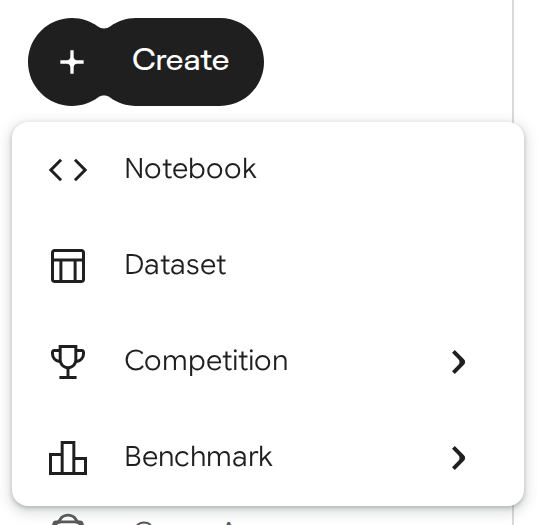
Click the + Create button on the left, then Notebook. A blank notebook opens.
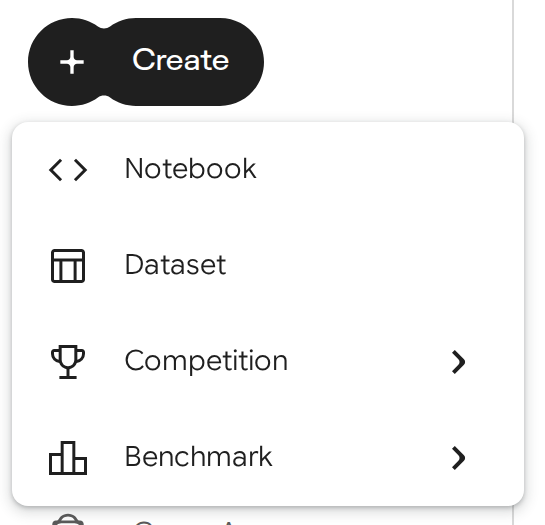
Step 3 + Create → Notebook -
Step 4: Choose TPU v5e-8 as the accelerator
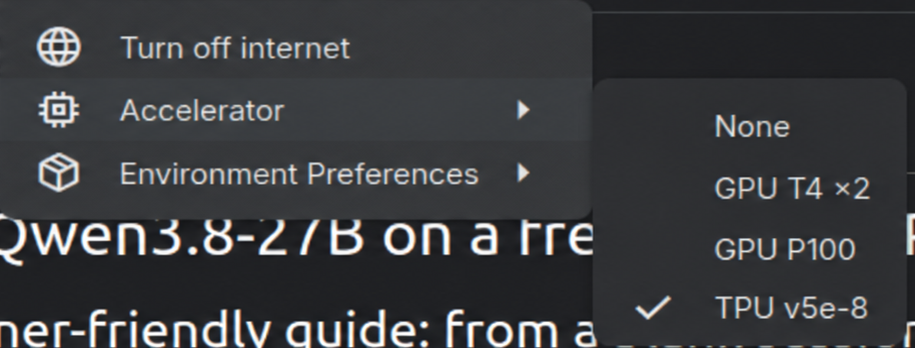
Settings then Accelerator then TPU v5e-8
Open Settings in the menu at the top of the notebook. Some screens call it TPU VM v5e-8; it's the same thing. The notebook restarts, and getting a TPU can take a few minutes.
Internet must be on too, to download models. In the same menu, click Turn on internet if you see it. If it says Turn off internet, internet is already on.
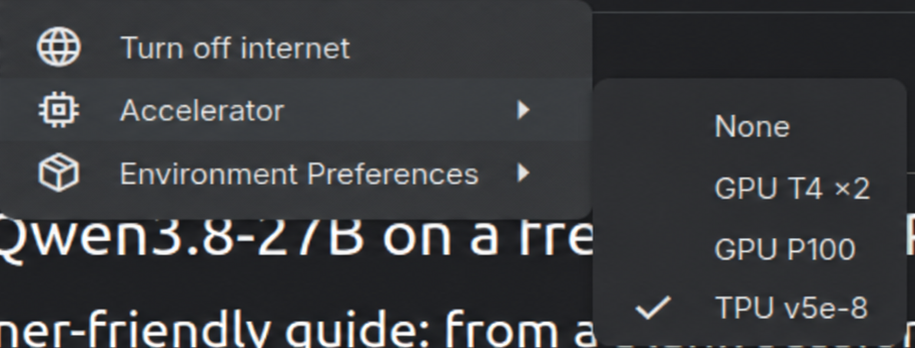
Step 4 Settings → Accelerator → ✓ TPU v5e-8. This screenshot is older: the GPU P100 was retired on 15 Sep 2026 and no longer appears in the list. Screenshot: Kitkitkittt/kaggle-tpu-lab -
Step 5: Check that all 8 chips are there
Type this in the first cell and press Shift + Enter:
import jaxprint(jax.device_count())print(jax.devices()[0].device_kind)Output
8
TPU v5 lite
If you see 8 and TPU v5 lite, all 8 TPU chips are attached. JAX calls the TPU v5e "TPU v5 lite".
Part 3
Option A: run Qwen 27B (ready-made notebook)
Now run a large AI model on the TPU. There are two ways; pick one. A is the easiest: a ready-made notebook that gives you your own API. In B, Gemma 26B answers right inside the notebook. Both are public projects that have run on this same free TPU. The speed figures come from their READMEs; your run may differ a little.
-
Step 6: Copy the public Qwen notebook
Open the notebook then
Open Kiet Vo's public notebook: Qwen3.8-27B-bf16 for free on Kaggle TPU with API. Click Copy & Edit at the top; your own copy opens.
In the copy, choose TPU v5e-8 under Accelerator and turn internet on, as in step 4.
-
Step 7: Check that both datasets are attached
Right panel then Input
Open Input in the notebook's right panel. These two datasets should be there. They come attached with the copy; if one is missing, add it with Add Input by searching for its name.
rahim3/qwen3-8-27b-bf16: the model, 55.6 GBrahim3/qwen38-tpu-env-v5e8: a ready-made compile cache
-
Step 8: Click Run All and wait about 22 minutes
The project's README says loading and compiling the model takes about 22 minutes. The last cell is the server: when it's ready, it prints a banner with a Base URL (
…trycloudflare.com/v1), an API key (sk-…) and the model nameqwen3.8-27b. -
Step 9: Talk to the model
Put the Base URL and API key into any OpenAI-compatible app, or run this curl command in a terminal. Replace the URL and key with your own:
curl https://xxxx-yyyy.trycloudflare.com/v1/chat/completions \ -H "Authorization: Bearer sk-<your-key>" \ -H "Content-Type: application/json" \ -d '{"model":"qwen3.8-27b","messages":[{"role":"user","content":"Hi! Explain a TPU in one line."}]}'According to the README: about 130 tokens/s for one user, about 540 tokens/s in total for 8 users at once, and a context of up to 262K tokens.
Part 4
Option B: run Gemma 26B (JAX)
Here Google's Gemma 4 26B model answers right inside the notebook. No public URL is created.
-
Step 10: Create a Hugging Face read token
huggingface.co then Settings then Access Tokens then
Create a free Hugging Face account, then create a token of type Read and copy it. The project's setup uses this token to download the model.
-
Step 11: Add the token to Kaggle Secrets
Add-ons then Secrets then
Enter
HF_TOKENas the label, exactly as written, and your token as the value. After saving, tick the box next to the secret so this notebook can read it.This notebook also needs TPU v5e-8 and internet turned on, as in step 4.
-
Step 12: Run the setup (first time only)
Run this in a new cell:
%%bashcd /root && rm -rf kaggle-tpu-inference && \git clone https://github.com/YLiu95/kaggle-tpu-inference.git && \cd kaggle-tpu-inference && bash setup.shAccording to the README, setup.shchecks that JAX sees 8 chips, downloads the ~52 GB model and builds a compile cache (about 7 minutes, once). -
Step 13: Ask Gemma a question
Run this cell as often as you like; just change the question in quotes:
%%bashcd /root/kaggle-tpu-inference && \bash run.sh "Hi! Explain a TPU in one line." --max-new-tokens 768 --temperature 1.0According to the README: the first token arrives in 44-69 ms, then about 111 tokens/s. The model is split across the 8 chips, using only about 6 GB on each. 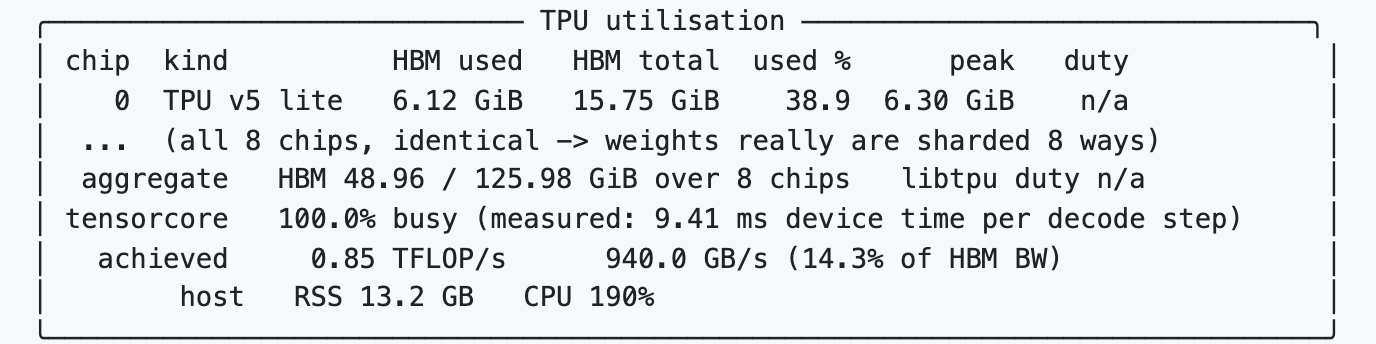
Step 13 Along with the answer, run.shshows this TPU dashboard. This is the run in the project's README: each chip is a TPU v5 lite with 15.75 GiB, 125.98 GiB over 8 chips in total (8 × 16 GB = 128 GB, with a little reserved by the system). Source: YLiu95/kaggle-tpu-inference
Make your free quota last
- Done? Stop the session. An open session uses quota even when no code is running. Closing the tab isn't enough: Kaggle's docs say an idle session can take up to 60 minutes to stop by itself. Stop it yourself.
- A session lasts up to 9 hours. For long jobs, keep saving output to
/kaggle/working. Everything else is deleted when the session ends. - One TPU session at a time. If a TPU notebook is running in another tab, you won't get a new TPU.
- The first run is slow, later ones are fast. The model compiles the first time. The Qwen notebook comes with a ready-made compile cache, and after setup the Gemma project answers every question in the same session straight away.
TPU or GPU: which should you pick?
| Job | Pick |
|---|---|
| Running large LLMs such as Qwen and Gemma (vLLM-TPU, JAX), or training and fine-tuning your own model (JAX, PyTorch/XLA, TensorFlow) | TPU v5e-8: 128 GB, up to 20 hours a week |
| Tools built for NVIDIA GPUs (CUDA), such as Ollama, llama.cpp, ComfyUI and Stable Diffusion | GPU T4 ×2: 2 × 16 GB, 30 hours a week or more |
In short: for a big model that needs lots of memory, use the TPU. For ready-made GPU apps, use T4 ×2. Both are free, and each has its own quota.
If something goes wrong
Frequently asked questions
Is Kaggle's TPU really free?
Yes. Kaggle's TPU docs say TPUs are available for free. You need a phone-verified account, and use is limited by a weekly quota.
How many hours do I get?
Kaggle's docs say up to 20 hours a week, and up to 9 hours in a single session.
Is it one 128 GB chip?
No. TPU v5e-8 has 8 separate chips with 16 GB each. To run a big model you have to split it across the 8 chips, which both projects above do for you.
Why is the TPU option greyed out or missing?
Usually your phone number isn't verified yet. Verify it in Settings and reload the notebook. At busy times you may also have to wait in a queue for a TPU.
Will Ollama or Stable Diffusion run on it?
Those tools are built for NVIDIA GPUs (CUDA) and don't run on a TPU. For them, choose GPU T4 ×2 under Accelerator.
Is the GPU P100 still available?
No. Kaggle retired the P100 on 15 September 2026. T4 ×2 is the only GPU option now.
Can I run my app or website on it?
No. Kaggle's Acceptable Use Policy calls server farming an abuse of its resources, and sessions end after at most 9 hours anyway.
Why do I have to download everything again each session?
Kaggle only saves what's in /kaggle/working (up to 20 GB). The rest of the disk is wiped when the session ends.
Sources
- Tensor Processing Units (TPUs) Documentation
- TPU v5e
- New TPU v5e-8s! Phasing out v3-8s
- Sunsetting the NVIDIA Tesla P100 GPU on September 15, 2026
- Notebooks
- Gemma-4 26B-A4B on a Kaggle TPU v5e-8 (kaggle-tpu-inference)
- Qwen3.8-27B on Kaggle's free TPU v5e-8 (kaggle-tpu-lab, from ARahim3's original)
- Qwen3.8-27B-bf16 for free on Kaggle TPU with API
- google/gemma-4-26B-A4B-it
- Efficient GPU Usage Tips
- Acceptable Use Policy
- Kaggle Community Guidelines
- tensorflow v5e-8 oct 2025
Update history
- First version, published with the Instagram reel. Every fact checked against Kaggle and Google Cloud docs and both projects' READMEs.